
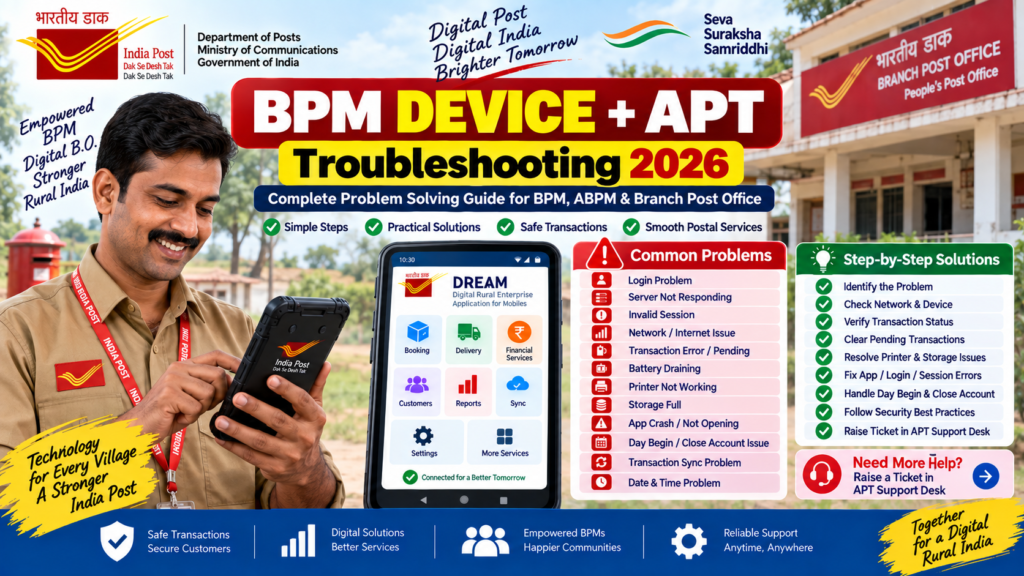
BPM Device + APT Troubleshooting 2026
Complete Problem Solving Guide for BPM, ABPM & Branch Post Office
⚡ Quick Answer – BPM Device में Problem आए तो क्या करें?
BPM Device या APT 2.0/DREAM App में कोई problem आने पर सबसे पहले transaction status, network, application session, device connectivity और pending transactions check करें।
खासकर financial transaction के दौरान error आने पर बिना status check किए transaction को दोबारा करने से बचें। पहले यह confirm करें कि transaction Pending, Successful या Failed स्थिति में है।
📱 BPM Device और APT 2.0 क्या है?
Department of Posts के IT Modernization 2.0 के अंतर्गत Advanced Postal Technology (APT) को nationwide rollout किया गया है। Branch Post Offices में Android-based mobile devices के माध्यम से APT आधारित applications का उपयोग किया जाता है।
Branch Post Office के operational work के लिए DREAM – Digital Rural Enterprise Application for Mobiles महत्वपूर्ण application है। इसके माध्यम से Branch Office के विभिन्न postal, delivery और financial operations किए जा सकते हैं।
इसलिए BPM Device में आने वाली technical समस्या का सही troubleshooting करना जरूरी है, खासकर जब transaction या day-end related काम प्रभावित हो।
📑 इस Article में क्या मिलेगा?
- BPM Device Troubleshooting का सही तरीका
- Login और Invalid Credentials Problem
- Server Not Responding Problem
- Invalid Session Problem
- Network / Internet Problem
- Transaction के दौरान Device Hang या Battery Problem
- Pending Transaction कैसे Check करें?
- Printer Problem और Reprint
- Insufficient Storage Problem
- DREAM/IMA App Crash Problem
- Date & Time Problem
- Day Begin / Close Account Related Issues
- Transaction Sync और DTR Verification
- APT Support Desk में Ticket कब Raise करें?
- Screenshot लेते समय Security का ध्यान
- Quick Troubleshooting Checklist
- FAQs
1️⃣ BPM Device Troubleshooting का सही तरीका
BPM Device में problem आते ही तुरंत application uninstall या device reset करना सही तरीका नहीं है। पहले problem को identify करें और basic checks करें।
① Network
Mobile data/Wi-Fi और network connectivity check करें।
② Session
Invalid Session हो तो logout करके fresh login करें।
③ Transaction
Transaction error में पहले pending status check करें।
④ Hardware
Printer, battery और device connectivity check करें।
2️⃣ BPM Device Login Problem
यदि BPM Device पर DREAM/Internal Mobile Application login नहीं हो रहा है, तो नीचे दिए गए basic checks करें:
- Employee ID सही है या नहीं check करें।
- Password carefully enter करें।
- Internet connectivity check करें।
- Device की date और time सही है या नहीं देखें।
- Application को बंद करके दोबारा खोलें।
- बार-बार गलत credentials enter करने से बचें।
3️⃣ “Server Not Responding” Problem
यदि login या application operation के समय “Server Not Responding” दिखाई देता है, तो यह server-side availability या connectivity से संबंधित हो सकता है।
✅ क्या करें?
- Internet connection check करें।
- कुछ मिनट wait करें।
- Application को दोबारा open करके retry करें।
- यदि समस्या लगातार बनी रहती है तो Support Desk में issue raise करें।
Branch Post Office FAQ में “Server Not Responding” के लिए कुछ समय wait करके retry करने की सलाह दी गई है।
4️⃣ “Invalid Session” Error का Solution
यदि काम करते समय Invalid Session error आता है, तो सामान्य troubleshooting के लिए:
- Application से Logout करें।
- Application को पूरी तरह close करें।
- कुछ seconds wait करें।
- Application दोबारा open करें।
- Fresh login करके काम continue करें।
5️⃣ BPM Device Network Problem
APT/DREAM application के लिए stable connectivity जरूरी है। Network problem होने पर page loading, login, transaction synchronization और server communication प्रभावित हो सकते हैं।
🔧 Network Troubleshooting Checklist
- Mobile Data ON है या नहीं check करें।
- Network signal strength check करें।
- यदि permitted network उपलब्ध है तो connectivity verify करें।
- Airplane Mode गलती से ON तो नहीं है, check करें।
- कुछ समय बाद application retry करें।
- Persistent issue होने पर Support Desk ticket raise करें।
6️⃣ Transaction के दौरान Device Hang / Battery Problem
सबसे महत्वपूर्ण बात यह है कि financial transaction के दौरान device hang, battery drain या application बंद हो जाए तो transaction को तुरंत दोबारा initiate न करें।
🚨 Transaction Safety Rule
Device restart होने के बाद पहले Pending Transaction Status check करें।
Transaction की स्थिति confirm किए बिना duplicate transaction करने से बचना चाहिए।
7️⃣ Pending Transaction कैसे Check करें?
Pending transaction troubleshooting का सबसे महत्वपूर्ण हिस्सा है। Current APT 2.0 workflow में Branch Post Office के लिए Pending Transaction Status का उपयोग transaction की स्थिति verify करने के लिए किया जाता है।
📌 Basic Workflow
- DREAM Application में login करें।
- Core Banking Services section खोलें।
- Pending Transaction Status option देखें।
- Pending transaction की स्थिति check करें।
- यदि transaction pending/not posted है तो applicable Update Pending Transactions process का उपयोग करें।
- Synchronization के बाद status दोबारा verify करें।
2026 की POSB/APT SOP में भी Branch Post Office को Close Account/Day End से पहले pending CBS transactions check करने और technical/network कारणों से pending transactions को synchronize करने की प्रक्रिया बताई गई है।
BPM Device Common Problems & Solutions 2026 – Complete Guide
8️⃣ BPM Device Printer Problem
यदि printer operation के दौरान problem देता है, तो पहले यह देखें कि printer device से properly connected है या नहीं।
🖨️ Printer Troubleshooting
- Bluetooth/USB connectivity check करें।
- Printer power check करें।
- Connection को verify करें।
- जरूरत होने पर printer restart करें।
- Device के साथ pairing दोबारा check करें।
- यदि transaction/receipt operation में printer बीच में fail हो जाए, applicable module में Reprint option देखें।
9️⃣ “Insufficient Storage” Problem
यदि BPM Device में storage कम होने के कारण application या device operations प्रभावित हो रहे हैं, तो available storage check करें।
- पुरानी unnecessary files check करें।
- Unused files को authorised procedure के अनुसार manage करें।
- Cached data/storage usage check करें।
- Unused applications के बारे में authorised instructions follow करें।
🔟 DREAM / IMA App बार-बार Crash हो रही है
यदि application बार-बार बंद हो रही है या crash हो रही है, तो पहले basic troubleshooting करें।
- Device को restart करें।
- Application version/update status check करें।
- Network connectivity verify करें।
- Storage availability check करें।
- यदि problem बनी रहती है तो issue का screenshot/error details note करें।
- जरूरत पड़ने पर Support Desk में ticket raise करें।
Application को uninstall/reinstall करने से पहले AO/authorised technical instructions follow करें।
1️⃣1️⃣ Device की Date & Time गलत है
Device की date/time गलत होने से कुछ application operations प्रभावित हो सकते हैं।
🕒 क्या Check करें?
- Device की current date check करें।
- Time सही है या नहीं देखें।
- Automatic date/time setting उपलब्ध हो तो authorised configuration के अनुसार verify करें।
- फिर application operation दोबारा check करें।
1️⃣2️⃣ APT Day Begin Problem
Branch Post Office के daily operations शुरू करने के लिए DREAM application में Day Begin महत्वपूर्ण step है।
यदि Day Begin में problem आ रही है, तो पहले login, network, date/time और application session verify करें।
- Fresh login करें।
- Network check करें।
- Date/time verify करें।
- Day Begin दोबारा attempt करें।
- Error message का screenshot सुरक्षित रखें।
- Persistent problem में Support Desk ticket raise करें।
1️⃣3️⃣ Close Account / Day End से पहले क्या Check करें?
BPM के लिए day-end से पहले केवल application बंद कर देना पर्याप्त नहीं है। विशेषकर CBS transactions के मामले में pending transactions और daily accounting data verify करना महत्वपूर्ण है।
✅ Day-End Safety Checklist
- ✔ सभी आवश्यक transactions complete करें।
- ✔ Pending Transaction Status check करें।
- ✔ Pending transactions को applicable process से synchronize करें।
- ✔ Daily Transaction Report generate/verify करें।
- ✔ DTR और BO Daily Account के बीच required verification करें।
- ✔ फिर applicable Close Account/Day End process complete करें।
2026 की POSB accounting SOP के अनुसार BO में Day Begin से Close Account तक CBS operations और pending transaction verification का sequence follow करना महत्वपूर्ण है।
1️⃣4️⃣ Transaction Sync नहीं हो रहा हो तो क्या करें?
Network या technical issue के कारण transaction तुरंत system में reflect न होने पर सबसे पहले उसका status verify करें।
- Transaction को दोबारा blindly initiate न करें।
- Pending Transaction Status check करें।
- Applicable update/synchronization process करें।
- Status फिर से verify करें।
- यदि issue unresolved है तो Account Office/Support Desk को जानकारी दें।
🚨 सबसे जरूरी बात – Duplicate Transaction से बचें
यदि financial transaction के दौरान network error, device hang, battery issue या application error आया है, तो केवल error message देखकर transaction को तुरंत दोबारा न करें।
पहले transaction status check करें। यही सबसे महत्वपूर्ण troubleshooting step है।
1️⃣5️⃣ Problem Solve नहीं हो रही? APT Support Desk का उपयोग करें
यदि basic troubleshooting के बाद भी BPM Device या APT 2.0 की technical समस्या solve नहीं होती है, तो उचित channel से Support Desk ticket raise करना चाहिए।
Ticket raise करते समय केवल “APT नहीं चल रहा” लिखने के बजाय complete information देना ज्यादा useful होता है।
📝 Ticket में क्या लिखें?
- Office details
- Problem का short but clear Subject
- Problem Description
- किस module में problem है
- Error message
- Problem कब से आ रही है
- यदि applicable हो तो screenshot/attachment
APT Support Desk 2026 – Ticket कैसे Raise करें? Complete Guide
1️⃣6️⃣ Screenshot लेते समय Security का ध्यान रखें
Technical issue report करने के लिए screenshot useful हो सकता है, लेकिन screenshot में confidential information accidentally share नहीं होनी चाहिए।
❌ Screenshot में यह information expose न करें
- ❌ Password
- ❌ OTP
- ❌ Customer की unnecessary personal information
- ❌ Account-related confidential information
- ❌ Sensitive employee information
1️⃣7️⃣ BPM Device Troubleshooting – 10 Step Formula
- Problem identify करें
- Network check करें
- Application/session check करें
- Date & Time verify करें
- Transaction status check करें
- Pending Transaction check करें
- Printer/device connectivity check करें
- Application/storage issue check करें
- Error screenshot/details note करें
- Problem persist होने पर Support Desk ticket raise करें
📚 APT 2.0 Related Guides
🔗 Official & Useful Resources
🇮🇳 India Post APT Employee Portal
🇮🇳 Official India Post Website
APT Common Problems & Solutions 2026 पढ़ें
❓ BPM Device + APT Troubleshooting FAQs
✅ Final BPM Device Troubleshooting Checklist
☑ Network working?
☑ Login/session correct?
☑ Date & Time correct?
☑ Transaction status checked?
☑ Pending transactions checked?
☑ Printer/device connection checked?
☑ Storage available?
☑ Application updated/working?
☑ DTR verified where applicable?
☑ Persistent issue → Support Desk ticket?
🏁 Conclusion
BPM Device और APT 2.0 की problems को solve करने के लिए सबसे जरूरी है कि हर error पर जल्दबाजी में कोई बड़ा change न किया जाए। पहले problem identify करें, network/session/device status check करें और financial transaction होने की स्थिति में सबसे पहले transaction status verify करें।
विशेष रूप से Pending Transaction, DTR verification और Close Account/Day End जैसे steps को carefully follow करना महत्वपूर्ण है।
यदि basic troubleshooting से समस्या solve नहीं होती है, तो complete error details के साथ APT Support Desk का उपयोग करें।